> For the complete documentation index, see [llms.txt](https://zisoft-awareness.gitbook.io/fawry-cloud-devops-internship/llms.txt). Markdown versions of documentation pages are available by appending `.md` to page URLs; this page is available as [Markdown](https://zisoft-awareness.gitbook.io/fawry-cloud-devops-internship/merge-vs-rebase.md).
# Merge vs Rebase
The `git rebase` command has a reputation for being magical Git hocus pocus that beginners should stay away from, but it can actually make life much easier for a development team when used with care. In this article, we’ll compare `git rebase` with the related `git merge` command and identify all of the potential opportunities to incorporate rebasing into the typical Git workflow.
The first thing to understand about `git rebase` is that it solves the same problem as `git merge`. Both of these commands are designed to integrate changes from one branch into another branch—they just do it in very different ways.
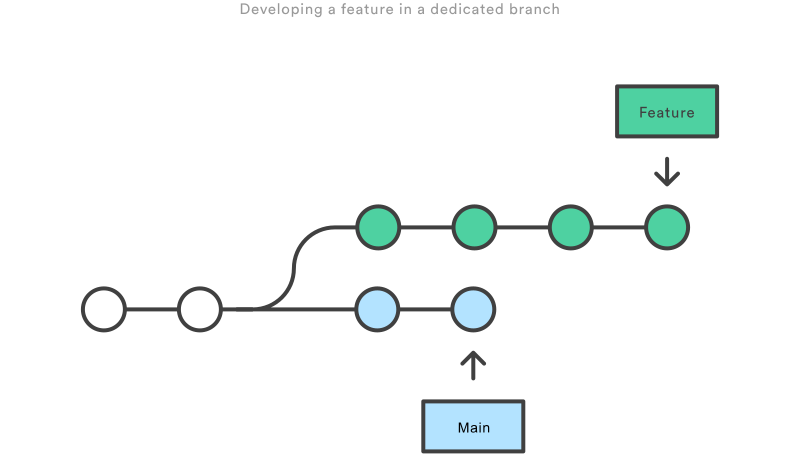
Consider what happens when you start working on a new feature in a dedicated branch, then another team member updates the `main` branch with new commits. This results in a forked history, which should be familiar to anyone who has used Git as a collaboration tool.
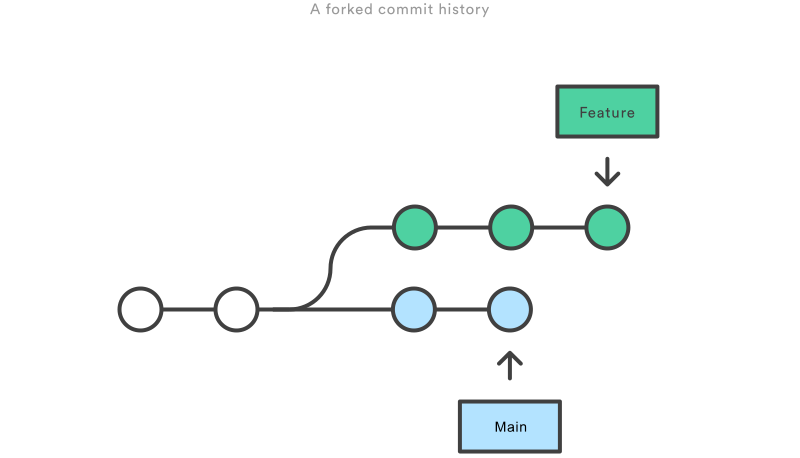
Now, let’s say that the new commits in `main` are relevant to the feature that you’re working on. To incorporate the new commits into your `feature` branch, you have two options: merging or rebasing.
The easiest option is to merge the `main` branch into the feature branch using something like the following:
Or, you can condense this to a one-liner:
This creates a new “merge commit” in the `feature` branch that ties together the histories of both branches, giving you a branch structure that looks like this:
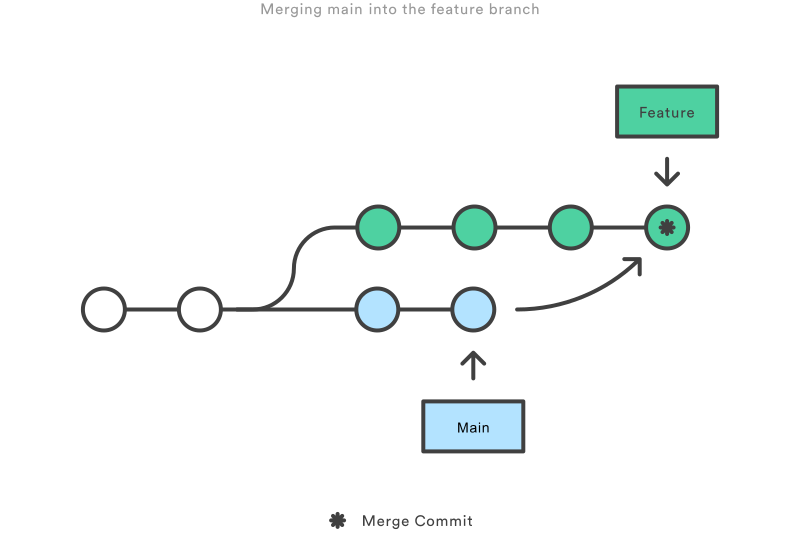
Merging is nice because it’s a *non-destructive* operation. The existing branches are not changed in any way. This avoids all of the potential pitfalls of rebasing (discussed below).
On the other hand, this also means that the `feature` branch will have an extraneous merge commit every time you need to incorporate upstream changes. If `main` is very active, this can pollute your feature branch’s history quite a bit. While it’s possible to mitigate this issue with advanced `git log` options, it can make it hard for other developers to understand the history of the project.
As an alternative to merging, you can rebase the `feature` branch onto `main` branch using the following commands:
This moves the entire `feature` branch to begin on the tip of the `main` branch, effectively incorporating all of the new commits in `main`. But, instead of using a merge commit, rebasing *re-writes* the project history by creating brand new commits for each commit in the original branch.
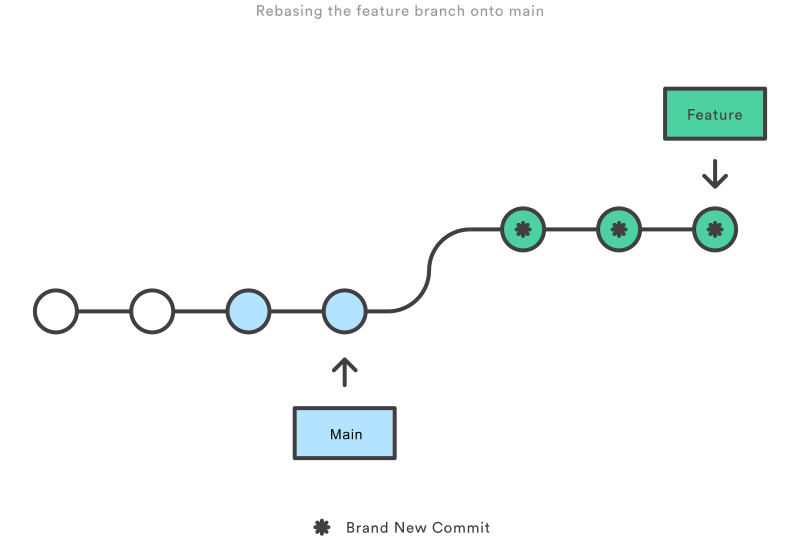
The major benefit of rebasing is that you get a much cleaner project history. First, it eliminates the unnecessary merge commits required by `git merge`. Second, as you can see in the above diagram, rebasing also results in a perfectly linear project history—you can follow the tip of `feature` all the way to the beginning of the project without any forks. This makes it easier to navigate your project with commands like `git log`, `git bisect`, and `gitk`.
But, there are two trade-offs for this pristine commit history: safety and traceability. If you don’t follow the
[Golden Rule of Rebasing](https://www.atlassian.com/git/tutorials/merging-vs-rebasing#the-golden-rule-of-rebasing)
, re-writing project history can be potentially catastrophic for your collaboration workflow. And, less importantly, rebasing loses the context provided by a merge commit—you can’t see when upstream changes were incorporated into the feature.
Interactive rebasing gives you the opportunity to alter commits as they are moved to the new branch. This is even more powerful than an automated rebase, since it offers complete control over the branch’s commit history. Typically, this is used to clean up a messy history before merging a feature branch into `main`.
To begin an interactive rebasing session, pass the `i` option to the `git rebase` command:
This will open a text editor listing all of the commits that are about to be moved:
pick 33d5b7a Message for commit #1
pick 9480b3d Message for commit #2
pick 5c67e61 Message for commit #3
This listing defines exactly what the branch will look like after the rebase is performed. By changing the `pick` command and/or re-ordering the entries, you can make the branch’s history look like whatever you want. For example, if the 2nd commit fixes a small problem in the 1st commit, you can condense them into a single commit with the `fixup` command:
pick 33d5b7a Message for commit #1
fixup 9480b3d Message for commit #2
pick 5c67e61 Message for commit #3
When you save and close the file, Git will perform the rebase according to your instructions, resulting in project history that looks like the following:
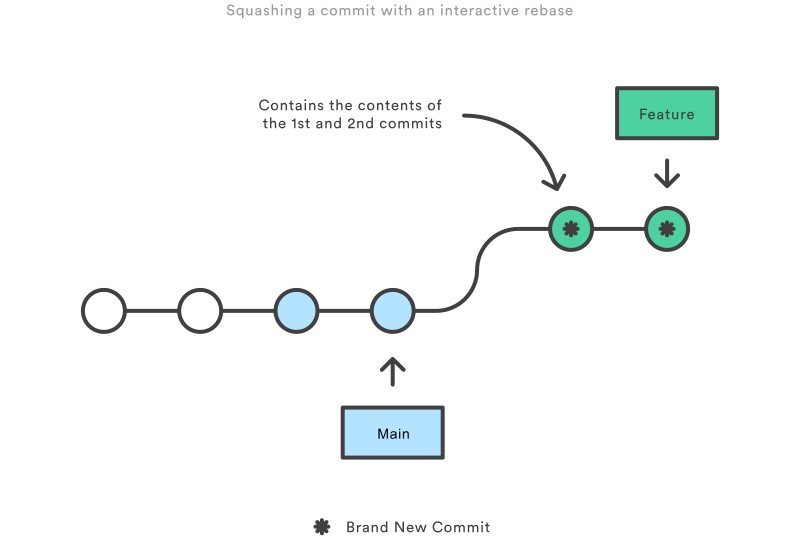
Eliminating insignificant commits like this makes your feature’s history much easier to understand. This is something that `git merge` simply cannot do.
#### The Golden Rule of Rebasing
Once you understand what rebasing is, the most important thing to learn is when *not* to do it. The golden rule of `git rebase` is to never use it on *public* branches.
For example, think about what would happen if you rebased `main` onto your `feature` branch:
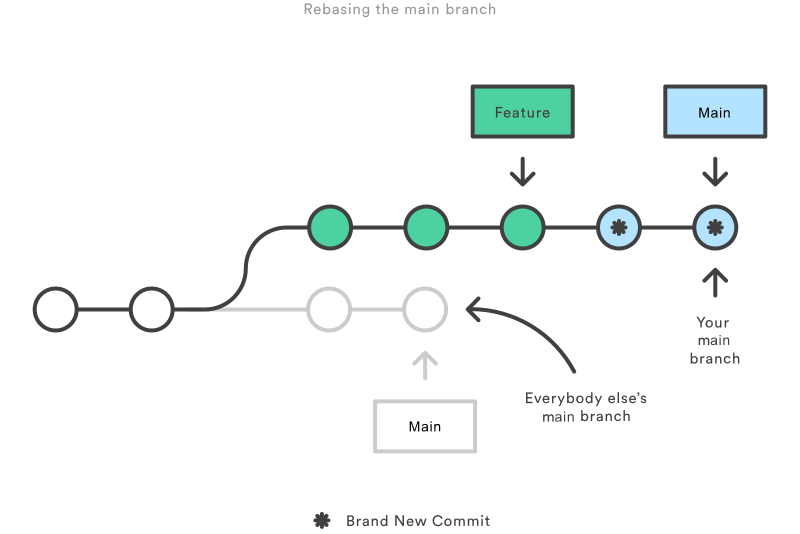
The rebase moves all of the commits in `main` onto the tip of `feature`. The problem is that this only happened in *your* repository. All of the other developers are still working with the original `main`. Since rebasing results in brand new commits, Git will think that your `main` branch’s history has diverged from everybody else’s.
The only way to synchronize the two `main` branches is to merge them back together, resulting in an extra merge commit *and* two sets of commits that contain the same changes (the original ones, and the ones from your rebased branch). Needless to say, this is a very confusing situation.
So, before you run `git rebase`, always ask yourself, “Is anyone else looking at this branch?” If the answer is yes, take your hands off the keyboard and start thinking about a non-destructive way to make your changes (e.g., the `git revert` command). Otherwise, you’re safe to re-write history as much as you like.
If you try to push the rebased `main` branch back to a remote repository, Git will prevent you from doing so because it conflicts with the remote `main` branch. But, you can force the push to go through by passing the `--force` flag, like so:
\# Be very careful with this command! git push --force
This overwrites the remote `main` branch to match the rebased one from your repository and makes things very confusing for the rest of your team. So, be very careful to use this command only when you know exactly what you’re doing.
One of the only times you should be force-pushing is when you’ve performed a local cleanup *after* you’ve pushed a private feature branch to a remote repository (e.g., for backup purposes). This is like saying, “Oops, I didn’t really want to push that original version of the feature branch. Take the current one instead.” Again, it’s important that nobody is working off of the commits from the original version of the feature branch.
Rebasing can be incorporated into your existing Git workflow as much or as little as your team is comfortable with. In this section, we’ll take a look at the benefits that rebasing can offer at the various stages of a feature’s development.
The first step in any workflow that leverages `git rebase` is to create a dedicated branch for each feature. This gives you the necessary branch structure to safely utilize rebasing:
One of the best ways to incorporate rebasing into your workflow is to clean up local, in-progress features. By periodically performing an interactive rebase, you can make sure each commit in your feature is focused and meaningful. This lets you write your code without worrying about breaking it up into isolated commits—you can fix it up after the fact.
When calling `git rebase`, you have two options for the new base: The feature’s parent branch (e.g., `main`), or an earlier commit in your feature. We saw an example of the first option in the *Interactive Rebasing* section. The latter option is nice when you only need to fix up the last few commits. For example, the following command begins an interactive rebase of only the last 3 commits.
git checkout feature git rebase -i HEAD\~3
By specifying `HEAD~3` as the new base, you’re not actually moving the branch—you’re just interactively re-writing the 3 commits that follow it. Note that this will *not* incorporate upstream changes into the `feature` branch.
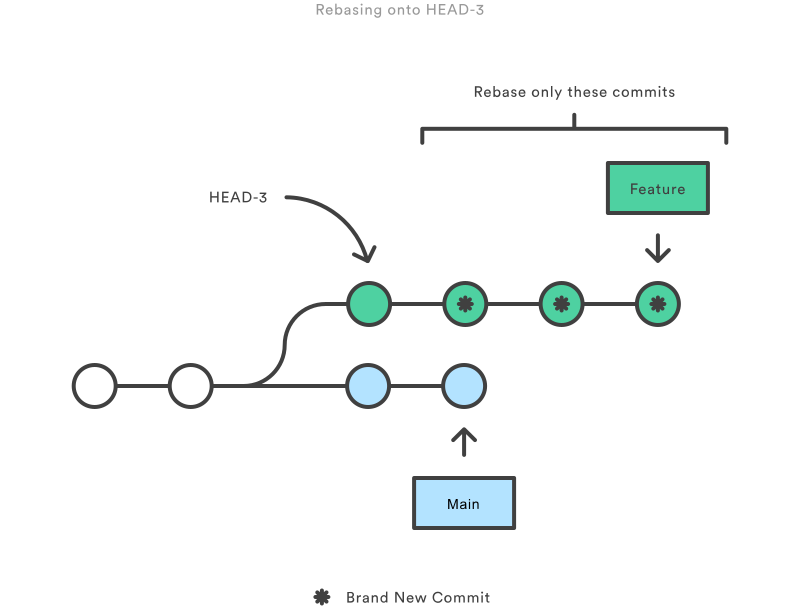
If you want to re-write the entire feature using this method, the `git merge-base` command can be useful to find the original base of the `feature` branch. The following returns the commit ID of the original base, which you can then pass to `git rebase`:
git merge-base feature main
This use of interactive rebasing is a great way to introduce `git rebase` into your workflow, as it only affects local branches. The only thing other developers will see is your finished product, which should be a clean, easy-to-follow feature branch history.
But again, this only works for *private* feature branches. If you’re collaborating with other developers via the same feature branch, that branch is *public*, and you’re not allowed to re-write its history.
There is no `git merge` alternative for cleaning up local commits with an interactive rebase.
**Incorporating Upstream Changes Into a Feature**
In the *Conceptual Overview* section, we saw how a feature branch can incorporate upstream changes from `main` using either `git merge` or `git rebase`. Merging is a safe option that preserves the entire history of your repository, while rebasing creates a linear history by moving your feature branch onto the tip of `main`.
This use of `git rebase` is similar to a local cleanup (and can be performed simultaneously), but in the process it incorporates those upstream commits from `main`.
Keep in mind that it’s perfectly legal to rebase onto a remote branch instead of `main`. This can happen when collaborating on the same feature with another developer and you need to incorporate their changes into your repository.
For example, if you and another developer named John added commits to the `feature` branch, your repository might look like the following after fetching the remote `feature` branch from John’s repository:
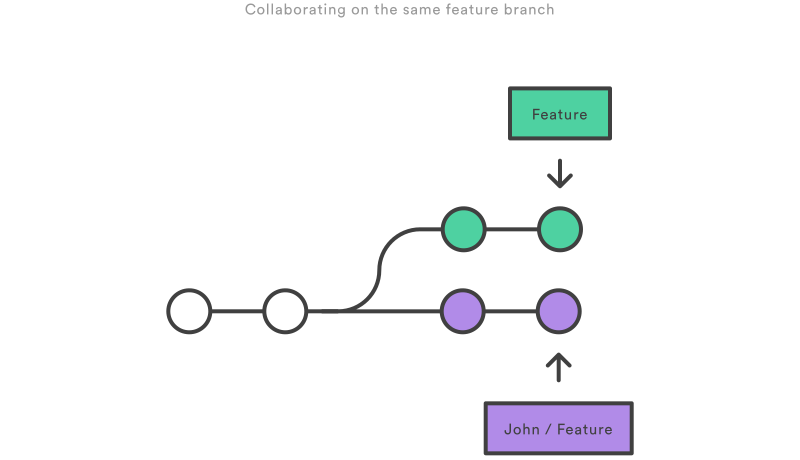
You can resolve this fork the exact same way as you integrate upstream changes from `main`: either merge your local `feature` with `john/feature`, or rebase your local `feature` onto the tip of `john/feature`.
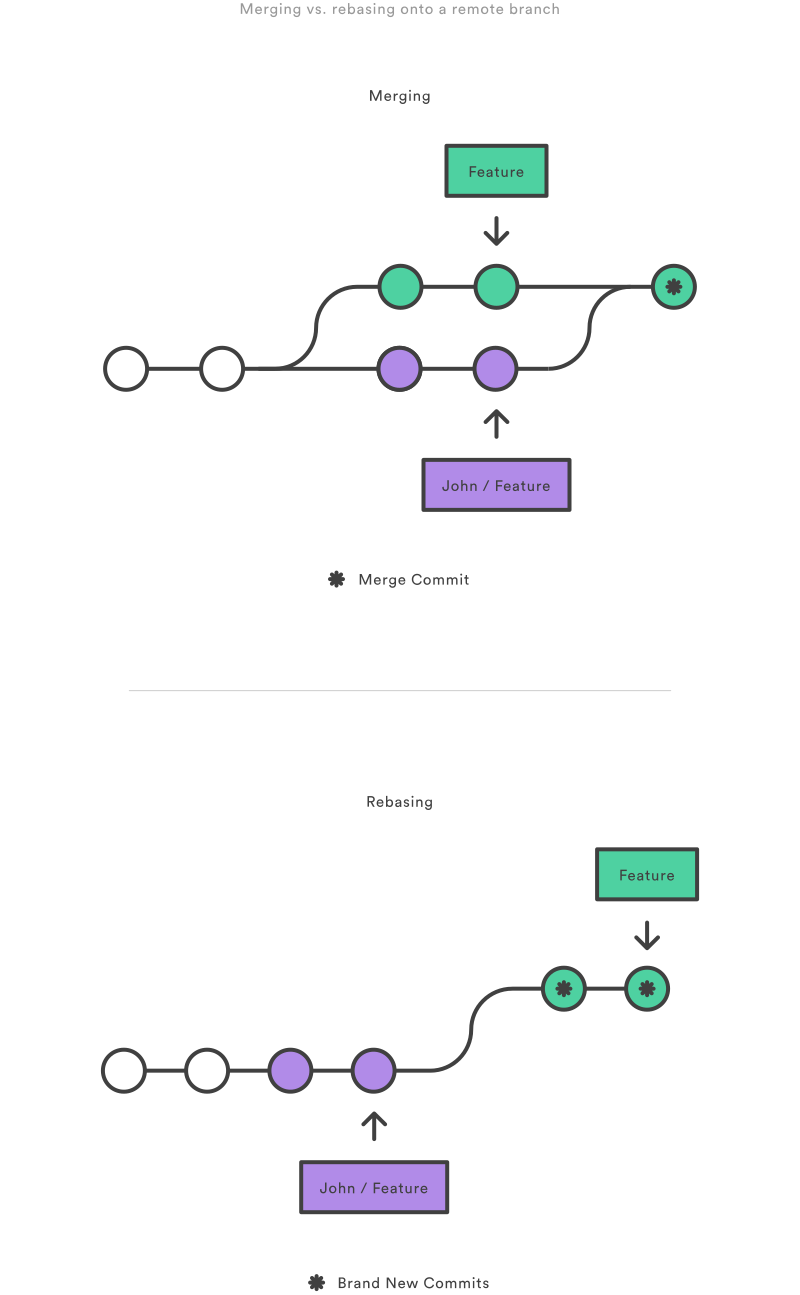
Note that this rebase doesn’t violate the *Golden Rule of Rebasing* because only your local `feature` commits are being moved—everything before that is untouched. This is like saying, “add my changes to what John has already done.” In most circumstances, this is more intuitive than synchronizing with the remote branch via a merge commit.
By default, the `git pull` command performs a merge, but you can force it to integrate the remote branch with a rebase by passing it the `--rebase` option.
**Reviewing a Feature With a Pull Request**
If you use pull requests as part of your code review process, you need to avoid using `git rebase` after creating the pull request. As soon as you make the pull request, other developers will be looking at your commits, which means that it’s a *public* branch. Re-writing its history will make it impossible for Git and your teammates to track any follow-up commits added to the feature.
Any changes from other developers need to be incorporated with `git merge` instead of `git rebase`.
For this reason, it’s usually a good idea to clean up your code with an interactive rebase *before* submitting your pull request.
**Integrating an Approved Feature**
After a feature has been approved by your team, you have the option of rebasing the feature onto the tip of the `main` branch before using `git merge` to integrate the feature into the main code base.
This is a similar situation to incorporating upstream changes into a feature branch, but since you’re not allowed to re-write commits in the `main` branch, you have to eventually use `git merge` to integrate the feature. However, by performing a rebase before the merge, you’re assured that the merge will be fast-forwarded, resulting in a perfectly linear history. This also gives you the chance to squash any follow-up commits added during a pull request.
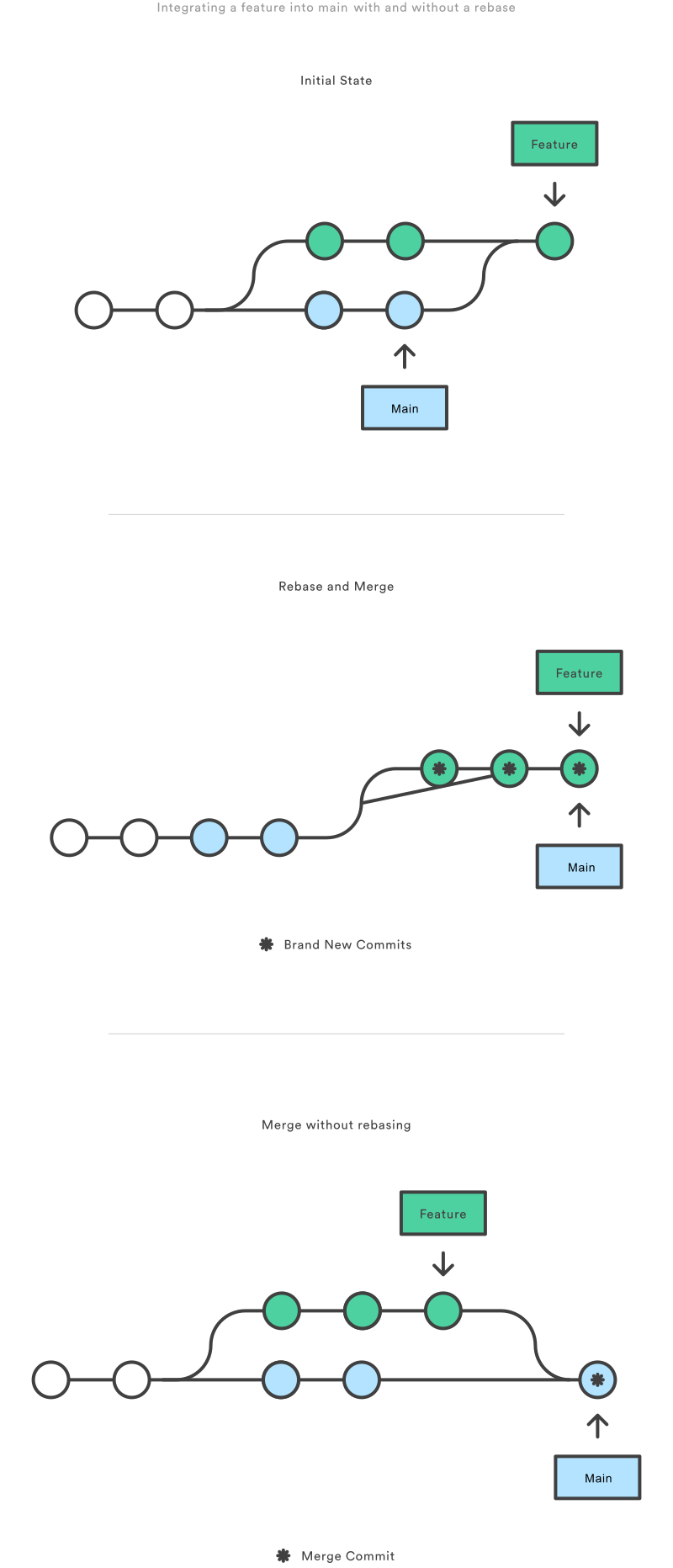
If you’re not entirely comfortable with `git rebase`, you can always perform the rebase in a temporary branch. That way, if you accidentally mess up your feature’s history, you can check out the original branch and try again. For example:
git checkout -b temporary-branch
git merge temporary-branch
#### The Advantages and Disadvantages of Git Rebase and Git Merge
Each merge process brings plusses and minuses to the table.
* Merge is simple, straightforward, and familiar
* Merge preserves the entire history in chronological order
* Merge maintains the branch’s context
* Merge creates a complete log that helps developers understand the big picture, showing when and how each merge occurred
* Merge makes it easy for users to find mistakes and correct them
* Merge isn’t very user-friendly
* Merge’s exhaustive nature results in a clumsy history and log
* Merge’s git log must be constantly and properly maintained, or devolve into a mess
* Rebase streamlines a possibly complex history
* Rebase cleans up intermediate commits by turning them into a single commit, making life easier for
[DevOps teams](https://www.simplilearn.com/core-components-devops-team-needs-to-be-successful-article)
* Rebase avoids the merge commit noise typically found in busy repos and busy branches
* Rebase creates a streamlined, linear log
* Rebase provides a lack of clutter, which facilitates project movement
* Users can’t track how and when commits were merged on the target branch
* Rebase won’t work with pull requests since you can’t see minor changes someone else made
* Rebase makes you resolve conflicts in the order they were created to continue the rebase. Unfortunately, this means more work for you, as you may need to fix the same conflicts repeatedly
* Rebase lowers the feature down to a small number of commits, making it challenging to see the context